How to change windows password without knowing the old password.
Guys, I am here again with a very interesting topic that you will love.Everybody knows that windows is a secure system & to login in window you need to have password. Also you can't change the password without knowing the old password. I am going to share a trick that will enable you to change the password & also you don't need the old password. :)
Change Window password from Windows Settings
Method 1:
1. Open command prompt in your windows machine. Here you will have to run a command that will change the password without asking for the old password.
2. Make sure you open it as 'Administrator'.

3. You just have to type in one command as below & hit enter:
net user <user_name> <new_password>

Just run this command, & you will be able to login with the new password. It won't ask you for old password anywhere, straight away this will update the password to a new one. :)
=========================================
Method 2:
1. Hit window key, locate 'Computer', right click & click on 'Manage' option.

2. Here navigate to the options as:
Computer Management > Local Users and Groups > Users.
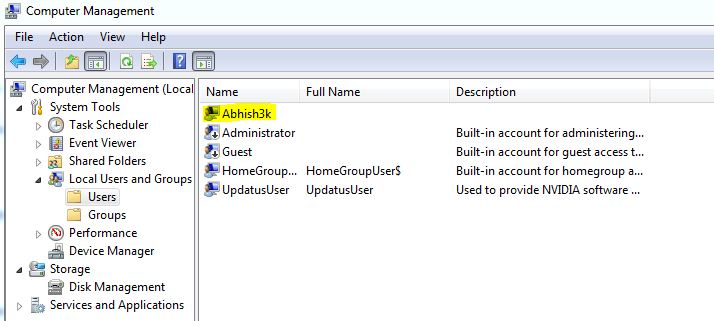
3. You will see now a list of all the existing user accounts. like administrator and the one which you have setup in your system. It can be any number of accounts.
4. Obviously now you have to select the account whose password you want change. & this account will be your victim account.
(For some fun you can change the password of your friends computer & ask for some party like things...LOL)
Jokes apart..........
5. Now just hit right click on this, & select the option 'Set Password'.

6. A pop-up box will hit the screen now, where some information ill be written about the account & some rubbish talks about changing passwords and all.
You just click on 'Proceed' button here.

7. Again another pop-up box will open, now you will be asked for the new password, just type in the new password & confirm it by re-entering it and press OK.

Good News.... Your Password has been changed successfully, & now on wards you can use this password to login. Just restart your computer & test this. :)
So how was this guys, I would really appreciate if you guys pass some feedback on the articles I have shared. This would help me improve the blog & your interaction with the blog.
Happy to hear from you all. :) :)


