Sunday, 25 December 2016

Top 10 free security enhancements for your computer

Hi Again Guys,
Today I am here with the most important article that will give you a good security for your computer. Security is the main aspect to have a safe & free work environment, even in office or your home place.

I am gonna tell you 10 best security enhancements that you must do in your computer/laptop.


10 Fast and Free Security Enhancements

Before you spend a dime on security, there are many precautions you can take that will protect you against the most common threats.

1. Check Windows Update and Office Update regularly; have your Office CD ready. Windows XP, 7,8 and 10 users can configure automatic updates. Click on the Automatic Updates tab in the System control panel and choose the appropriate options as per your requirements.


2. Install a personal firewall. Both SyGate (www.sygate.com) and ZoneAlarm (www.zonelabs.com) offer free versions.


3. Install a free spyware blocker. SpyBot is also paranoid and ruthless in hunting out tracking cookies. To clarify this, this is more of an add blocker, there are many browser ad-blocker plugins. You can even search for spyware blocker & have them installed.


4. Block the pop-up spam messages in whatever version of Windows you are using. Open Control Panel -> Administrative Tools -> Services and you'll see Messenger. 

Right-click and go to Properties. Set Start-up Type to Disabled and press the Stop button. 

Bye-bye, spam pop-ups! Any good firewall will also stop them.


5. Use strong passwords and change them periodically. Passwords should have at least seven characters; use letters and numbers and have at least one symbol. A decent example would be f8izKro@l. This will make it much harder for anyone to gain access to your accounts.
Also it will be hard to hack the passwords using many type of attacks like dictionary attack.


6. If you're using Outlook or Outlook Express, use the current version or one with the Outlook Security Update installed. The update and current versions patch numerous vulnerabilities.


7. Buy antivirus software and keep it up to date. If you're not willing to pay, try Grisoft AVG Free Edition (Grisoft Inc., www.grisoft.com). And double check your AV with the free, online-only scanners available at www.pandasoftware.com/ and http://housecall.trendmicro.com.


8. If you have a wireless network, turn on the security features:
- Use MAC filtering
- Turn off SSID broadcast
- Even use WEP with the biggest key you can get. 


9. Join a respectable e-mail security list, so that you learn about emerging threats quickly and can take proper precautions. Staying updated is always offer a good security. So its good to be alert than regretting later.


10. Be skeptical of things on the Internet. Don't assume that e-mail "From:" a particular person is actually from that person until you have further reason to believe it's that person. Don't assume that an attachment is what it says it is. Don't give out your password to anyone, even if that person claims to be from "support." 


I can give you guidelines to secure your system, Its you who have to act on time before it too late.

As always, your feedbacks are always welcome.


======================================================

Visit the blog for more fun & knowledge articles. 
Follow the page, share the page & K33p visiting.

Top 10 reasons why your system crash

Hi Guys, 
I am sure, all of you must have faced an unexpected system crash or failures. Just imagine you are in middle of some important task & your system got crashed. How'd you feel, Annoyed? In fact very Annoyed....

Ever imagined what the reasons could be behind these crashes. I will introduce you now with the reasons behind these crashes & system failures.


Top 10 reasons why your system crash


1. Hardware Conflict

The number one reason why Windows crashes is hardware conflict. Each hardware device communicates to other devices through an interrupt request channel (IRQ). These are supposed to be unique for each device.

For example, a printer usually connects internally on IRQ 7. The keyboard usually uses IRQ 1 and the floppy disk drive IRQ 6. Each device will try to hog a single IRQ for itself.

If there are a lot of devices, or if they are not installed properly, two of them may end up sharing the same IRQ number. When the user tries to use both devices at the same time, a crash can happen. The way to check if your computer has a hardware conflict is through the following route:

* Start-Settings-Control Panel-System-Device Manager.

Often if a device has a problem a yellow '!' appears next to its description in the Device Manager. Highlight Computer (in the Device Manager) and press Properties to see the IRQ numbers used by your computer. If the IRQ number appears twice, two devices may be using it.

Sometimes a device might share an IRQ with something described as 'IRQ holder for PCI steering'. This can be ignored. The best way to fix this problem is to remove the problem device and reinstall it.

Sometimes you may have to find more recent drivers on the internet to make the device function properly. A good resource is www.driverguide.com. If the device is a soundcard, or a modem, it can often be fixed by moving it to a different slot on the motherboard (be careful about opening your computer, as you may void the warranty).

When working inside a computer you should switch it off, unplug the mains lead and touch an unpainted metal surface to discharge any static electricity.

To be fair to Mcft, the problem with IRQ numbers is not of its making. It is a legacy problem going back to the first PC designs using the IBM 8086 chip. Initially there were only eight IRQs. Today there are 16 IRQs in a PC. It is easy to run out of them. There are plans to increase the number of IRQs in future designs.


2. Bad Ram

Ram (random-access memory) problems might bring on the blue screen of death with a message saying Fatal Exception Error. A fatal error indicates a serious hardware problem. Sometimes it may mean a part is damaged and will need replacing.

But a fatal error caused by Ram might be caused by a mismatch of chips. For example, mixing 70-nanosecond (70ns) Ram with 60ns Ram will usually force the computer to run all the Ram at the slower speed. This will often crash the machine if the Ram is overworked.

One way around this problem is to enter the BIOS settings and increase the wait state of the Ram. This can make it more stable. Another way to troubleshoot a suspected Ram problem is to rearrange the Ram chips on the motherboard, or take some of them out. Then try to repeat the circumstances that caused the crash. When handling Ram try not to touch the gold connections, as they can be easily damaged.

Parity error messages also refer to Ram. Modern Ram chips are either parity (ECC) or non parity (non-ECC). It is best not to mix the two types, as this can be a cause of trouble.

EMM386 error messages refer to memory problems but may not be connected to bad Ram. This may be due to free memory problems often linked to old Dos-based programmes.


3. BIOS Settings

Every motherboard is supplied with a range of chipset settings that are decided in the factory. A common way to access these settings is to press the F2 or delete button during the first few seconds of a boot-up.

Once inside the BIOS, great care should be taken. It is a good idea to write down on a piece of paper all the settings that appear on the screen. That way, if you change something and the computer becomes more unstable, you will know what settings to revert to.

A common BIOS error concerns the CAS latency. This refers to the Ram. Older EDO (extended data out) Ram has a CAS latency of 3. Newer SDRam has a CAS latency of 2. Setting the wrong figure can cause the Ram to lock up and freeze the computer's display.

Mcft Windows is better at allocating IRQ numbers than any BIOS. If possible set the IRQ numbers to Auto in the BIOS. This will allow Windows to allocate the IRQ numbers (make sure the BIOS setting for Plug and Play OS is switched to 'yes' to allow Windows to do this.).


4. Hard Disk Drives

After a few weeks, the information on a hard disk drive starts to become piecemeal or fragmented. It is a good idea to defragment the hard disk every week or so, to prevent the disk from causing a screen freeze. Go to

* Start-Programs-Accessories-System Tools-Disk Defragmenter

This will start the procedure. You will be unable to write data to the hard drive (to save it) while the disk is defragmenting, so it is a good idea to schedule the procedure for a period of inactivity using the Task Scheduler.

The Task Scheduler should be one of the small icons on the bottom right of the Windows opening page (the desktop).

Some lockups and screen freezes caused by hard disk problems can be solved by reducing the read-ahead optimisation. This can be adjusted by going to

* Start-Settings-Control Panel-System Icon-Performance-File System-Hard Disk.

Hard disks will slow down and crash if they are too full. Do some housekeeping on your hard drive every few months and free some space on it. Open the Windows folder on the C drive and find the Temporary Internet Files folder. Deleting the contents (not the folder) can free a lot of space.

Empty the Recycle Bin every week to free more space. Hard disk drives should be scanned every week for errors or bad sectors. Go to

* Start-Programs-Accessories-System Tools-ScanDisk

Otherwise assign the Task Scheduler to perform this operation at night when the computer is not in use.


5. Fatal OE exceptions and VXD Errors

Fatal OE exception errors and VXD errors are often caused by video card problems.

These can often be resolved easily by reducing the resolution of the video display. Go to

* Start-Settings-Control Panel-Display-Settings

Here you should slide the screen area bar to the left. Take a look at the colour settings on the left of that window. For most desktops, high colour 16-bit depth is adequate.

If the screen freezes or you experience system lockups it might be due to the video card. Make sure it does not have a hardware conflict. Go to

* Start-Settings-Control Panel-System-Device Manager

Here, select the + beside Display Adapter. A line of text describing your video card should appear. Select it (make it blue) and press properties. Then select Resources and select each line in the window. Look for a message that says No Conflicts.

If you have video card hardware conflict, you will see it here. Be careful at this point and make a note of everything you do in case you make things worse.

The way to resolve a hardware conflict is to uncheck the Use Automatic Settings box and hit the Change Settings button. You are searching for a setting that will display a No Conflicts message.

Another useful way to resolve video problems is to go to

* Start-Settings-Control Panel-System-Performance-Graphics

Here you should move the Hardware Acceleration slider to the left. As ever, the most common cause of problems relating to graphics cards is old or faulty drivers (a driver is a small piece of software used by a computer to communicate with a device).

Look up your video card's manufacturer on the internet and search for the most recent drivers for it.


6. Viruses

Often the first sign of a virus infection is instability. Some viruses erase the boot sector of a hard drive, making it impossible to start. This is why it is a good idea to create a Windows start-up disk. Go to

* Start-Settings-Control Panel-Add/Remove Programs

Here, look for the Start Up Disk tab. Virus protection requires constant vigilance.

A virus scanner requires a list of virus signatures in order to be able to identify viruses. These signatures are stored in a DAT file. DAT files should be updated weekly from the website of your antivirus software manufacturer.

An excellent antivirus programme is McAfee VirusScan by Network Associates ( www.nai.com). Another is Norton AntiVirus 2000, made by Symantec ( www.symantec.com).


7. Printers

The action of sending a document to print creates a bigger file, often called a postscript file.

Printers have only a small amount of memory, called a buffer. This can be easily overloaded. Printing a document also uses a considerable amount of CPU power. This will also slow down the computer's performance.

If the printer is trying to print unusual characters, these might not be recognised, and can crash the computer. Sometimes printers will not recover from a crash because of confusion in the buffer. A good way to clear the buffer is to unplug the printer for ten seconds. Booting up from a powerless state, also called a cold boot, will restore the printer's default settings and you may be able to carry on.


8. Software

A common cause of computer crash is faulty or badly-installed software. Often the problem can be cured by uninstalling the software and then reinstalling it. Use Norton Uninstall or Uninstall Shield to remove an application from your system properly. This will also remove references to the programme in the System Registry and leaves the way clear for a completely fresh copy.

The System Registry can be corrupted by old references to obsolete software that you thought was uninstalled. Use Reg Cleaner by Jouni Vuorio to clean up the System Registry and remove obsolete entries. It works on Windows 95, Windows 98, Windows 98 SE (Second Edition), Windows Millennium Edition (ME), NT4 and Windows 2000.

Read the instructions and use it carefully so you don't do permanent damage to the Registry. If the Registry is damaged you will have to reinstall your operating system. Reg Cleaner can be obtained from www.jv16.org

Often a Windows problem can be resolved by entering Safe Mode. This can be done during start-up. When you see the message "Starting Windows" press F4. This should take you into Safe Mode.

Safe Mode loads a minimum of drivers. It allows you to find and fix problems that prevent Windows from loading properly.

Sometimes installing Windows is difficult because of unsuitable BIOS settings. If you keep getting SUWIN error messages (Windows setup) during the Windows installation, then try entering the BIOS and disabling the CPU internal cache. Try to disable the Level 2 (L2) cache if that doesn't work.

Remember to restore all the BIOS settings back to their former settings following installation.


9. Overheating

Central processing units (CPUs) are usually equipped with fans to keep them cool. If the fan fails or if the CPU gets old it may start to overheat and generate a particular kind of error called a kernel error. This is a common problem in chips that have been overclocked to operate at higher speeds than they are supposed to.

One remedy is to get a bigger better fan and install it on top of the CPU. Specialist cooling fans/heatsinks are available from www.computernerd.com or www.coolit.com

CPU problems can often be fixed by disabling the CPU internal cache in the BIOS. This will make the machine run more slowly, but it should also be more stable.


10. Power Supply Problems

With all the new construction going on around the country the steady supply of electricity has become disrupted. A power surge or spike can crash a computer as easily as a power cut.

If this has become a nuisance for you then consider buying a uninterrupted power supply (UPS). This will give you a clean power supply when there is electricity, and it will give you a few minutes to perform a controlled shutdown in case of a power cut.

It is a good investment if your data are critical, because a power cut will cause any unsaved data to be lost.


There might be some several other reasons, but the above listed are the main reasons behind any system failure. You will have to very careful with these points if you love your system. :)

Your feedbacks are always welcome.


======================================================

Visit the blog for more fun & knowledge articles. 
Follow the page, share the page & K33p visiting.

Friday, 23 December 2016

Change windows password without knowing old password

How to change windows password without knowing the old password.

Guys, I am here again with a very interesting topic that you will love. 

Everybody knows that windows is a secure system & to login in window you need to have password. Also you can't change the password without knowing the old password. I am going to share a trick that will enable you to change the password & also you don't need the old password. :)


  1. Change Window password from Windows Settings

Method 1:

1. Open command prompt in your windows machine. Here you will have to run a command that will change the password without asking for the old password.
2. Make sure you open it as 'Administrator'.


3. You just have to type in one command as below & hit enter:
net user <user_name> <new_password>

Just run this command, & you will be able to login with the new password. It won't ask you for old password anywhere, straight away this will update the password to a new one. :)

=========================================

Method 2:

1. Hit window key, locate 'Computer', right click & click on 'Manage' option.


2. Here navigate to the options as: 
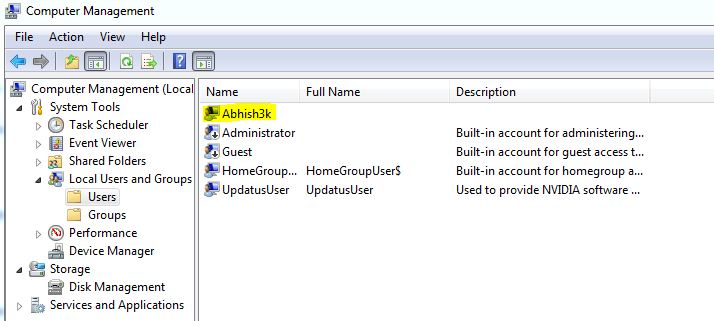
Computer Management > Local Users and Groups > Users.


3. You will see now a list of all the existing user accounts. like administrator and the one which you have setup in your system. It can be any number of accounts.

4. Obviously now you have to select the account whose password you want change. & this account will be your victim account.


(For some fun you can change the password of your friends computer & ask for some party like things...LOL)

Jokes apart..........

5. Now just hit right click on this, & select the option 'Set Password'.


6. A pop-up box will hit the screen now, where some information ill be written about the account & some rubbish talks about changing passwords and all.
You just click on 'Proceed' button here.


7. Again another pop-up box will open, now you will be asked for the new password, just type in the new password & confirm it by re-entering it and press OK.


Good News.... Your Password has been changed successfully, & now on wards you can use this password to login. Just restart your computer & test this. :)


So how was this guys, I would really appreciate if you guys pass some feedback on the articles I have shared. This would help me improve the blog & your interaction with the blog.

Happy to hear from you all. :) :)


======================================================

Visit the blog for more fun & knowledge articles. 
Follow the page, share the page & K33p visiting.

Thursday, 22 December 2016

Find IP address of the person you are chatting with

Hi People,
Ever tried to find out the IP address of the person you are chatting with? if No then here is the way you can find the IP address & eventually the IP location & find out if the person if real or faking.

Most of us have some secrets in our life, but what if someone tries to hack into your life & talk to you with a fake identity. If something like that happens, you can easily track down the person by tracing its IP address. To achieve this we have a powerful command i.e. "netstat".


Steps to find IP address:

1. Open the command prompt. (make sure you open it as 'administrator').
2. Just type in a simple command: netstat -an
3. It will give you a series of IP addresses like the below screenshot.

Find out all the IP addresses you are communicating with.

4. Here you will see some 'established' connections, these are the ones with whom you are communicating in some way, it may be chatting or downloading.
5. The IP address that you are looking for will for sure start from 192.168.__.__
6. Find out all the IP's starting with 192.168 & find the IP address.
That's it.


Now to trace this IP address, google is always a savior. Just search on google race IP address, you will see many results. Open one of the reliable website & push your IP address in there & it will give you the location of the user in return also it will return you the ISP details, if required you can contact ISP to get the information you are looking for..

Isn't that simple. :)


Other netstat options:

-a Displays all connections and listening ports.
-e Displays Ethernet statistics. This may be combined with the -s option.
-n Displays addresses and port numbers in numerical form.
-p proto Shows connections for the protocol specified by proto; proto may be TCP or UDP.
-s option to display per-protocol statistics, proto may be TCP, UDP, or IP.
-r Displays the routing table.
-s Displays per-protocol statistics. By default, statistics are shown for TCP, UDP and IP; the
-p option may be used to specify a subset of the default.


======================================================

Visit the blog for more fun & knowledge articles. 
Follow the page, share the page & K33p visiting.

Monday, 19 December 2016

Easy way to finding IP address from website URL

Hi Guys,

Well this article is the most easiest thing that you could ever find.Here we will find out the IP address of any website from its URL.

IP address is required during many tasks that you perform, like for blocking a website you will require IP address, & many more interesting stuff that I will be sharing in my next articles.

Let's start with the steps:

1. Open command prompt on your windows machine.

- press "Window key+R" together to have a run prompt opened.
- Type in "cmd" in the text box appeared.
- Command Prompt will open right in front of you.


- Now all you have to do is just run a ping command on the website whose IP address you want. for example "ping www.google.co.in".


Here is the IP address of the required website. Similarly, you can find IP address of any website that you wish to.

This works on UNIX/Linux operating systems as well, in UNIX/Linux you will have terminal window instead of command prompt. But command will be the same "ping www.google.co.in".

That's it for this article guys.

If you wish to Dive deep in to command prompt:
Here is your pool to jump in & explore more on cmd:

http://cyb3rgeek.blogspot.in/2016/12/command-prompt-basic-commands.html


======================================================

Visit the blog for more fun & knowledge articles. 
Follow the page, share the page & K33p visiting.

Ultimate guide to block a Website

Hey Folks,

Ever tried to block a website, No?


There are several reasons why you might want to block a certain websites on your computer/laptop. It may be because of some virus transmitting websites, or to secure your personal data or to avoid it from your kids or many more reasons.

Well there are many ways to block any website that you wish to block, it may be using some external software, browser settings or the most efficient way is to add an entry in windows hosts file.


Site blocking


1. Blocking at OS level:

- DNS system works as a backbone of Internet, & DNS system translates IP addresses to easy to remember names (for example www.google.co.in). You can't remember IP addresses of all the web sites, so DNS system gives you privileges to give your IP address a name that you can remember easily.
See my article to know more on DNS & how it works: Click Here

Visit the link to get IP address: How to find IP address from URL

On Operating System level, we have a hosts file that keeps this information handy. And you can put the websites in this file that you want to block.


a. You must have administrator privileges to access this file.

b. This file is located in your "C" drive:

C:\Windows\System32\drivers\etc


c. Open the file in Notepad. (Double click the file, select Notepad from the list of applications)

d. At the end of this file, you can make an entry of the website that you no longer wish to visit anymore.

e. Entry should be like:

IP Address         <website URL>

and so on.... You can make as many entries as you want.

f. For example, if you wish to block google.com, then add the details accordingly: 
"127.00.1   www.google.co.in". (without quotes)


You can make one entry per line.

g. Add all the websites that you wish to block, & save this file now.
h. Reboot the system for this file to take effect, & you are done. The websites are blocked as per your wish.


2. Blocking at Browser level:

There are many browsers available, but the most popular ones are "Google Chrome" & "Mozilla Firefox". Both these browsers gives many add-ons that can serve your purpose. One of the popular add-on is BlockSite, this is available for both the browsers.

a. Once you have installed the extension in your browser, go to extensions page (inside settings, extensions at left side bar)

b. Go to its options, & add the site name that you wish to block in the text bar provided.

c. Save the settings, & that it. The site is blocked now.

======================================================

Visit the blog for more fun & knowledge articles. 
Follow the page, share the page & K33p visiting.

Thursday, 15 December 2016

Epic YouTube Hacks and Tricks

Amazing YouTube Hacks

Hi People,
Most of you visit YouTube only to have some fun or to watch videos but most of you are un aware of the hidden tricks of YouTube, but these tricks are actually amazing. :)

1. Type 'Use the force Luke' and watch your YouTube act drunk.

Ever wondered that YouTube can also behave like a drunk one. lol. :D
Yes, You read it right. There is something about YouTube that can make it rock & roll over the screen. Below is the trick, lets make YouTube a drunk one today.

All you have to do is just type "USE the force Luke" in the search bar of YouTube.
Have Fun. :)
Drunk YouTube :)

2. Downloading Videos from YouTube

Downloading Videos from YouTube was always a trouble before this amazing hidden trick, It won't take more than 10 seconds to redirect you to the direct download link, also you can download any video quality that you want. Nothing can be more simpler than this trick. :)

Just add a simple 'ss' in the URL after www and before YouTube to download YouTube videos effortlessly. like http://www.ssyoutube.com/watch?v=vZhNv3ThdlI

You will see something like below, download the video quality you want without any external software.


Download any quality you want

Note: This trick doesn't work with secure connection (https), so make sure you use it only with http connection.

3. Watch age restricted videos without logging in.

I am sure all of you must have came across some age-restricted videos, which is quite annoying & it requires a login to continue watching the video.

Don't feel like logging in, But still wanna watch it? Well, not to worry. You are at a right place guys. :)
All you have to do is, remove "watch?" from the URL, and replace the "v=" with "v/". Press enter and enjoy the video. Isn't that simple & interesting.


4. Just type 'doge meme' in the search bar to make your YouTube colourful. :)

Bored of that view of YouTube, want some colors in life? Here is something to make your life colorful, YouTube gives you a soothing view that will make you relax.

Just type in "doge meme" in your search box & have a colorful view. Enjoy this view now & have some peace.

Love the colors

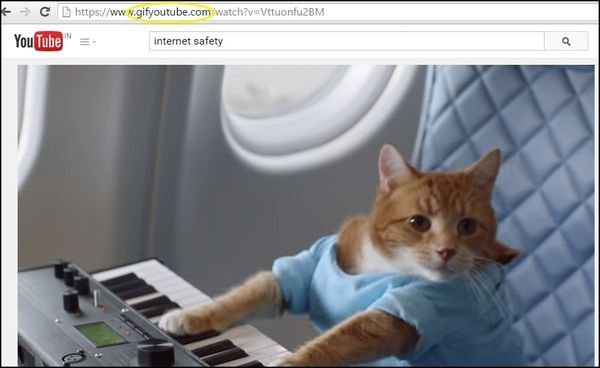
5. Add 'gif' to YouTube in the URL to convert YouTube videos to GIF.


It's time of GIF's, then from where you can generate good GIF's? here is the answer guys. You can do this from youtube & you can make gif of any video that you want. Just fllow the trick below. & have fun. :)

GIF
You'll automatically be taken to a GIF maker where you can choose the length of your GIF.
That's all for now, I will be posting more interesting hacks here. Keep visiting for more fun stuff. :)
Don't forget to follow the blog, keep sharing, keep visiting.